

Inspect and edit a model in Studio
Import the complete Customer Story set, inspect its relationships, make a change and save portable models and workspace backups.
Studio is a visual editor for model definitions. You can arrange models, edit fields and inspect relationships without editing YAML directly. This walkthrough uses the same Customer Story set as the first-model tutorial.
Use a desktop pointer device for the canvas. The documentation works on mobile; Studio’s primary interaction target is desktop.
Open Studio
Section titled “Open Studio”Open Studio. If that deployment is unavailable, run the editor locally from its source repository:
git clone https://github.com/headless-company/cmmf-visual-editor.gitcd cmmf-visual-editornpm installnpm run devUse the Node requirements in that repository and open the local URL printed by Vite. This website does not configure or certify the hosted Studio deployment.
Back up your current board
Section titled “Back up your current board”Before importing, choose Export → Save workspace. This downloads .cmmf.json with your model data, positions and layout. Give the backup a recognisable filename.
Import replaces the current board. You can undo it in the current session, but a saved backup is the useful way to carry your work to another browser or recover after clearing browser data.
Import the complete model set
Section titled “Import the complete model set”- Download customer-story.models.json. Save the file if your browser displays its JSON instead.
- In Studio, choose Import.
- Set Import layout to Connections.
- Choose Choose file and select the downloaded JSON.
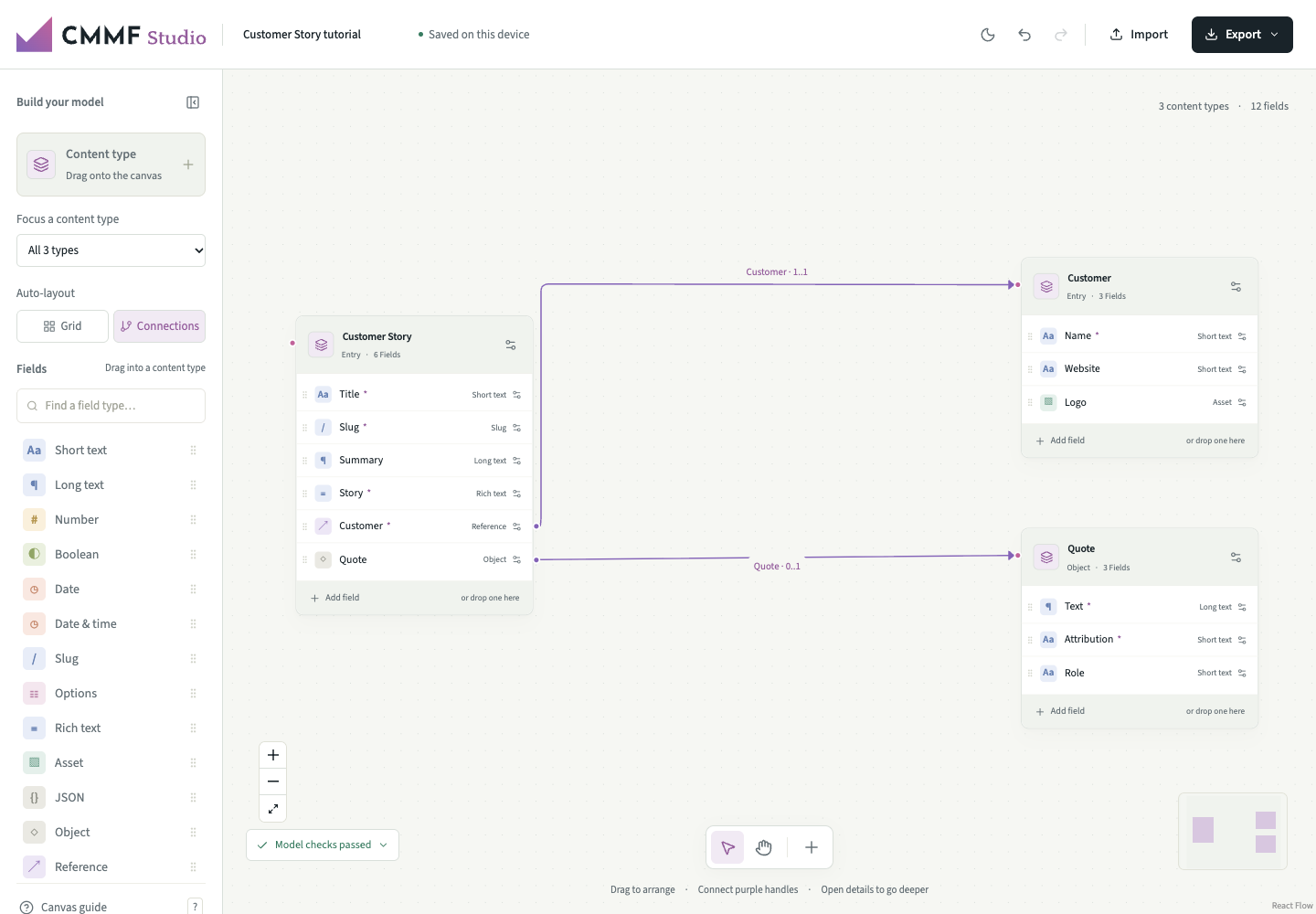
The board should contain Customer Story, Customer and Quote, with two outgoing relationships from Customer Story. Fit whole model brings the graph into view. Grid and Connections offer different arrangements; layout changes can be undone.
The JSON is a model-import bundle, not a saved Studio workspace. It includes the models but no layout or project manifest. Do not select the project ZIP, schema JSON or manifest.yaml as the import file.
Inspect the intended relationships
Section titled “Inspect the intended relationships”Click Customer Story or select it with Focus a content type. Hover customer to highlight its link to Customer. Open the field’s sliders or click the relationship to inspect it.
The Customer reference is required and singular, with linked ownership. Its 1..1 label is field repeatability; it does not restrict a customer to appearing in only one story.
Inspect quote next. Its Object type points to Quote. It is optional, while the embedded structure requires text and attribution when present. Object composition and reference linking are distinct modelling decisions even though both appear as canvas connections.
Inspect the rich-text Story field’s capability settings and the Title/Summary character limits. These express requirements for translation; a successful model check does not establish that real content or a CMS editor follows them.
Make and inspect a change
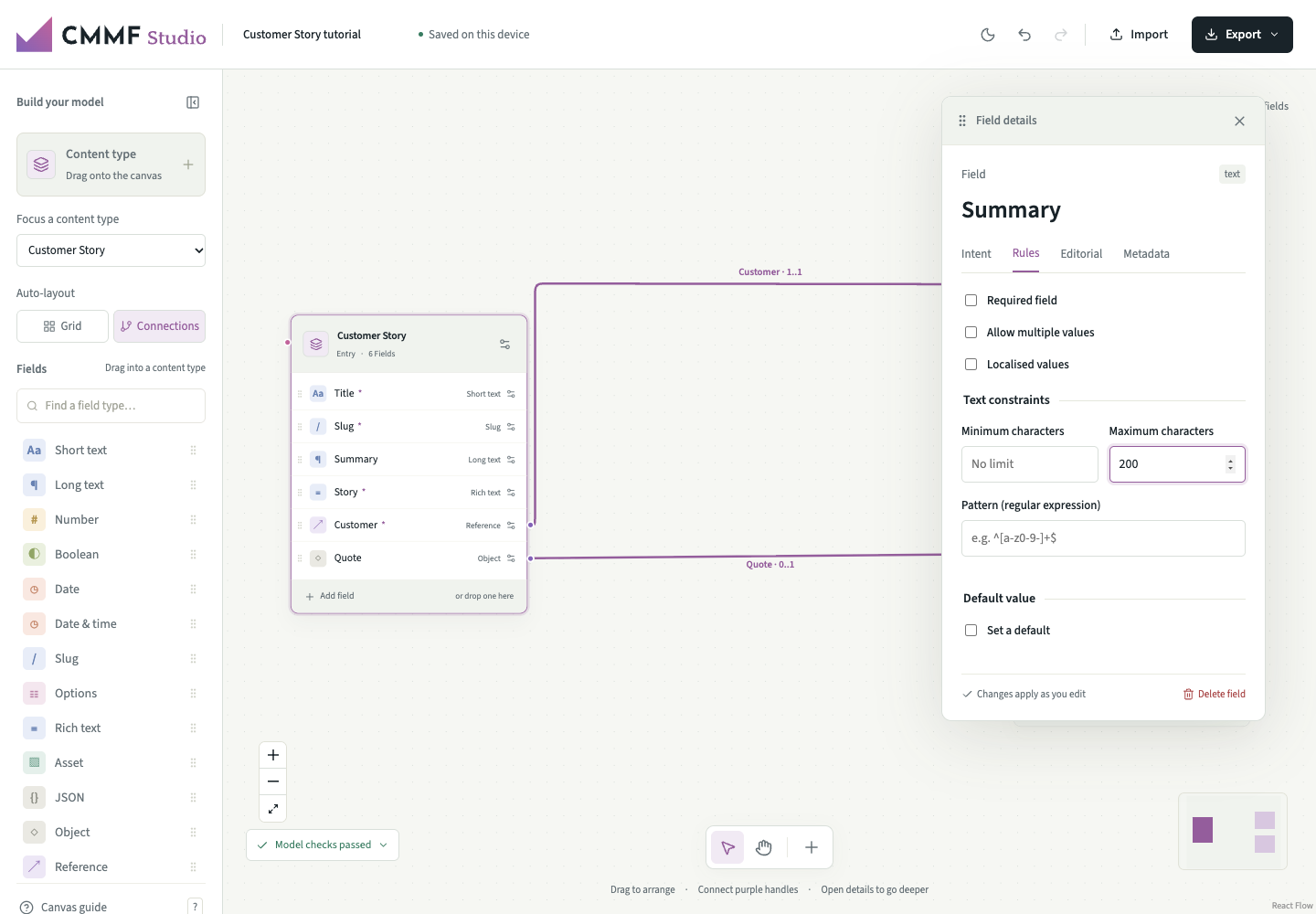
Section titled “Make and inspect a change”Open Summary’s sliders, choose Rules, then change Maximum characters from 250 to 200. Save a workspace backup with a new name. The limit belongs to the model; you have not edited actual stories.
To add a field, select a model and click a field type in the palette, or drag the field type into that model. Edit its label on the canvas. Open its sliders for requiredness, repeatability, defaults, constraints and editorial help.
To create a model, choose Content type in the library or the canvas +, then choose its kind. Rename it on the canvas and inspect its purpose. Studio generates stable IDs; changing a display name does not rewrite them. Models created from scratch may therefore have different IDs from this example.
To connect a new reference or object, drag its right handle to the target model’s left handle. References can allow more than one target model; objects point to an object model structure. Review the target and field settings before exporting.
Use field grips to reorder or move fields, model headers to move models, and inspector title bars to move detail panels. Undo/redo is available in the toolbar. On macOS use ⌘Z / ⇧⌘Z; on other systems use Ctrl+Z / Ctrl+Shift+Z. Escape closes detail panels.
Validate and export portable models
Section titled “Validate and export portable models”Choose Export → CMMF models. Studio checks each model against its 1.2.0 schema and checks IDs, unresolved targets, empty enum options and contradictory bounds. If it reports issues, repair them before exporting.
The downloaded ZIP contains models/<model-id>.yaml files. It excludes canvas layout and does not supply the project’s manifest, schema or local validator.
To continue the file tutorial:
- Extract the exported ZIP.
- Copy the three YAML files into the extracted tutorial project’s
models/folder, replacing the corresponding model files. Keepmanifest.yaml, the validator and its schema. - Run
npm run validatein the tutorial project. - Run
npm run bundleto write models.json, then import that new file if you want to bring those changes back into Studio.
This complete-set check also covers object target kinds and editorial field references. It does not check approval of a quotation, editorial usefulness or platform-specific implementation.
Restore the workspace layout
Section titled “Restore the workspace layout”Choose Import, select Keep saved positions, then select the .cmmf.json backup created with Save workspace. That preserves the saved layout when it is complete. Files without saved positions are arranged by relationships instead.
Studio does not import its YAML ZIP output. Use workspace JSON for a complete layout round trip, or a model-import JSON/YAML bundle when layout is not required.
Understand where work is saved
Section titled “Understand where work is saved”Changes save in this browser’s local storage. There is no account, remote storage or live collaboration service in this implementation. Different devices and browser profiles do not share the board automatically. Clearing site/browser data can remove it.
Export regular workspace backups, and treat a storage error in the header as a reason to save one immediately. A workspace backup and a portable model project serve different purposes; retain both when you use both workflows.